Promotions
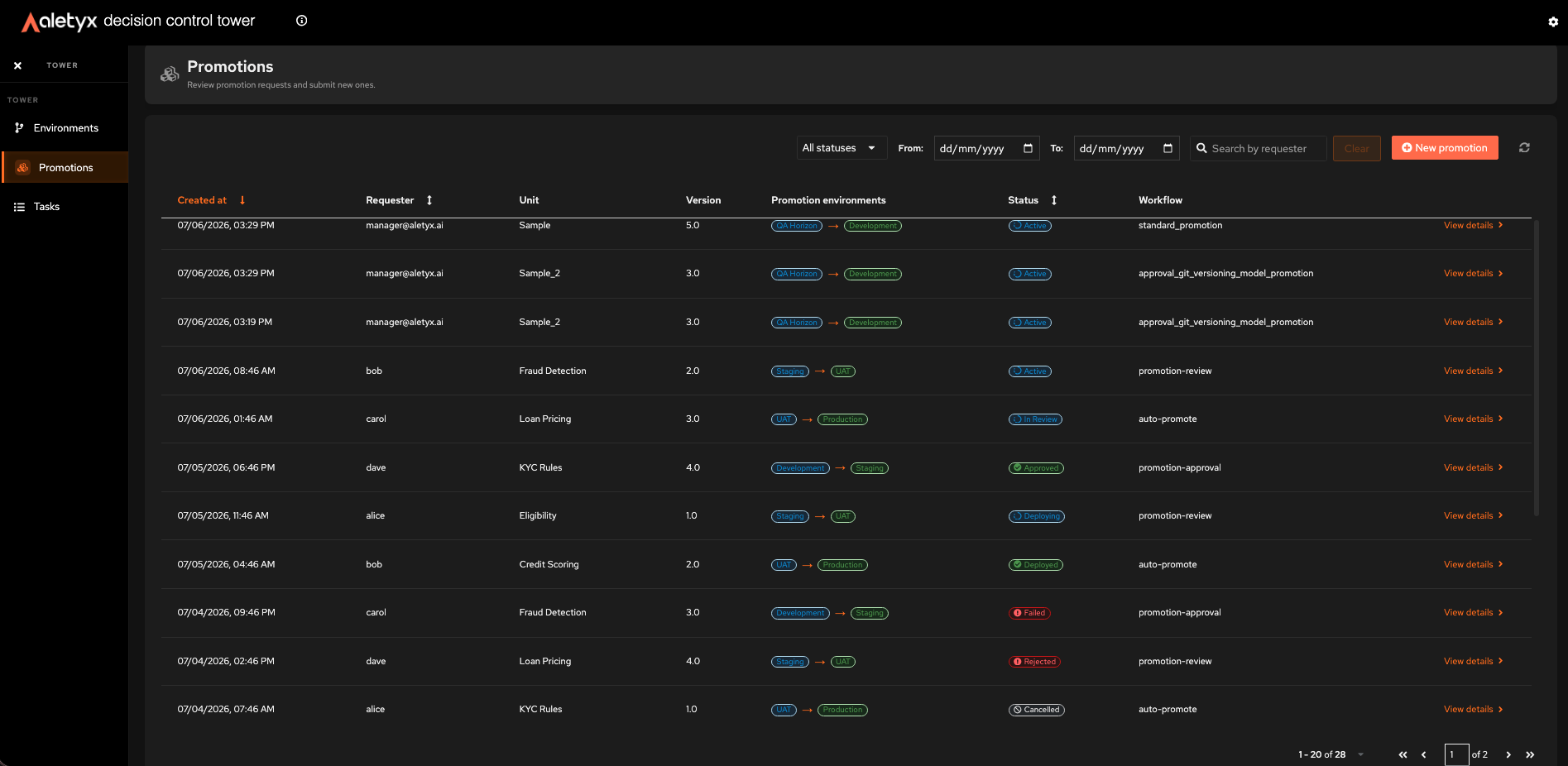
Promotions move a model version from one environment to another through a governed workflow. The Promotions area is a full flow: a list of every request, a form to create a new request, and a per-request detail page with the workflow and its timeline.
All how-tos on this page are available to any signed-in Tower user unless noted.
How to view promotion requests
Browse every promotion request and its current status.
Steps:
- In the sidebar, click Promotions to open the list at
/promotions. - Read the table: Requester, Unit, Version, Promotion environments, Workflow, Status.
- (Optional) Narrow the list with the toolbar:
- Status dropdown (defaults to All statuses).
- From: / To: date range (the To date is inclusive through end of day).
- Search by requester (minimum 3 characters).
- (Optional) Click a sortable column header to reorder; use the pager below the table.
Verify: Rows render with colored status pills; the list auto-refreshes about every 20 seconds. Click Refresh to update immediately.
Open a request
Click any row to open its detail page.
How to create a promotion request
Submit a model version to be promoted from a source environment to a target environment.
Prerequisites:
- At least one online source environment and a distinct target environment.
- The model unit and version you want to promote.
Steps:
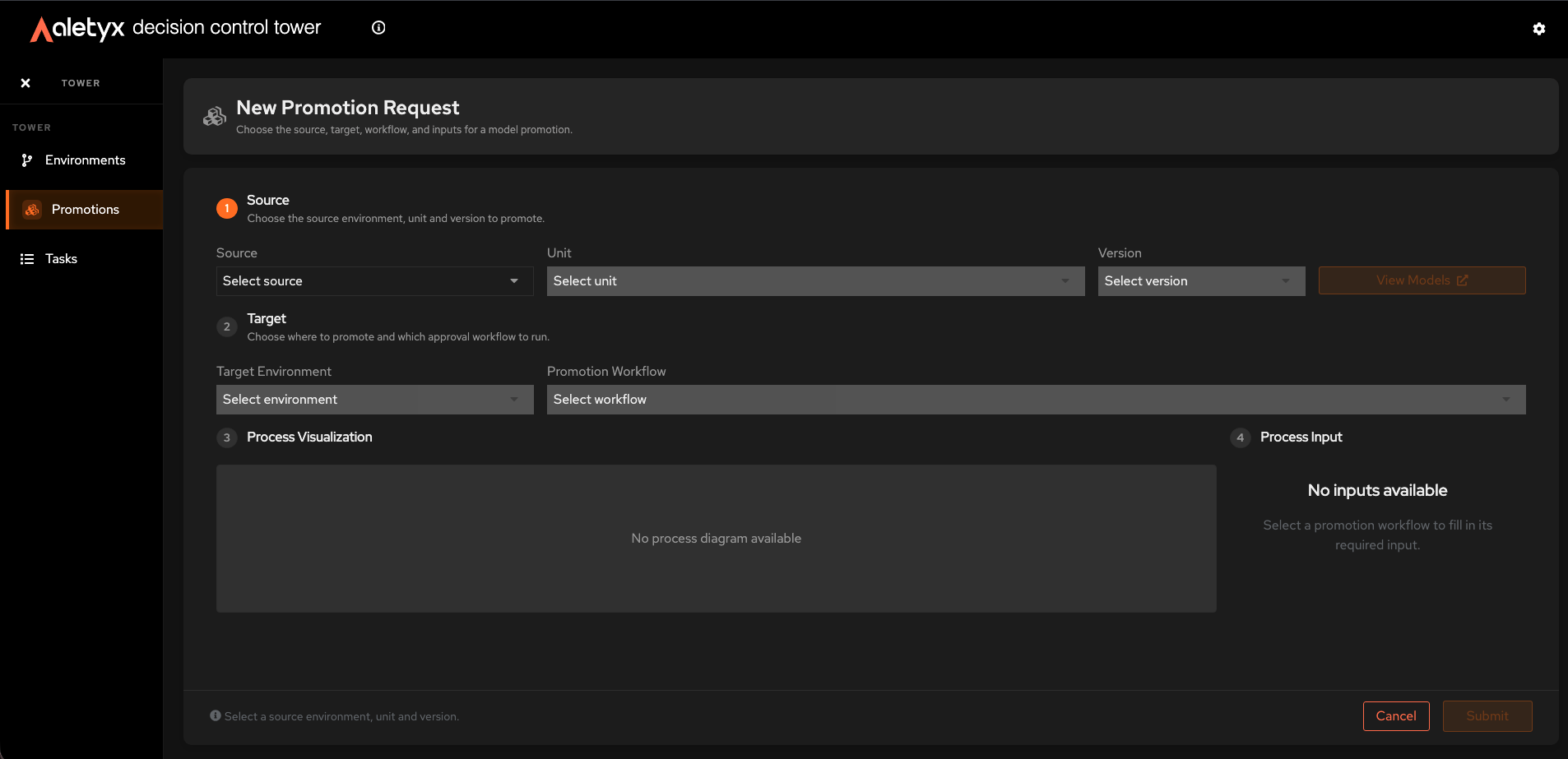
- On the Promotions list, click New promotion to open the New Promotion Request form (
/promotions/new). - Source - select Source, Unit, and Version. Your choices collapse into a Selection Summary you can reopen with Edit.
- Target - select Target Environment and Promotion Workflow (must differ from the source).
- Review Process Visualization (the workflow diagram) and fill Process Input - shown side by side. Complete any required field (for example, justification); a missing required value shows an inline error.
- Click Submit (if it is disabled, a helper text explains why) - or Cancel to discard and return to the list.
Verify: A success message appears, you are taken to the new request's detail page, it shows up in the list, and the Tasks badge in the sidebar goes up.
How to view source models before promoting
Open the source model in its editor to confirm you're promoting the right version.
Prerequisites: On the New Promotion Request form with Source, Unit, and Version selected.
Steps:
- Click View Models.
Verify: The source environment's model editor opens in a new tab at the selected unit/version.
How to open a promotion request's detail
Inspect a single request, its workflow, and its history.
Steps:
- On the Promotions list, click a row (or open
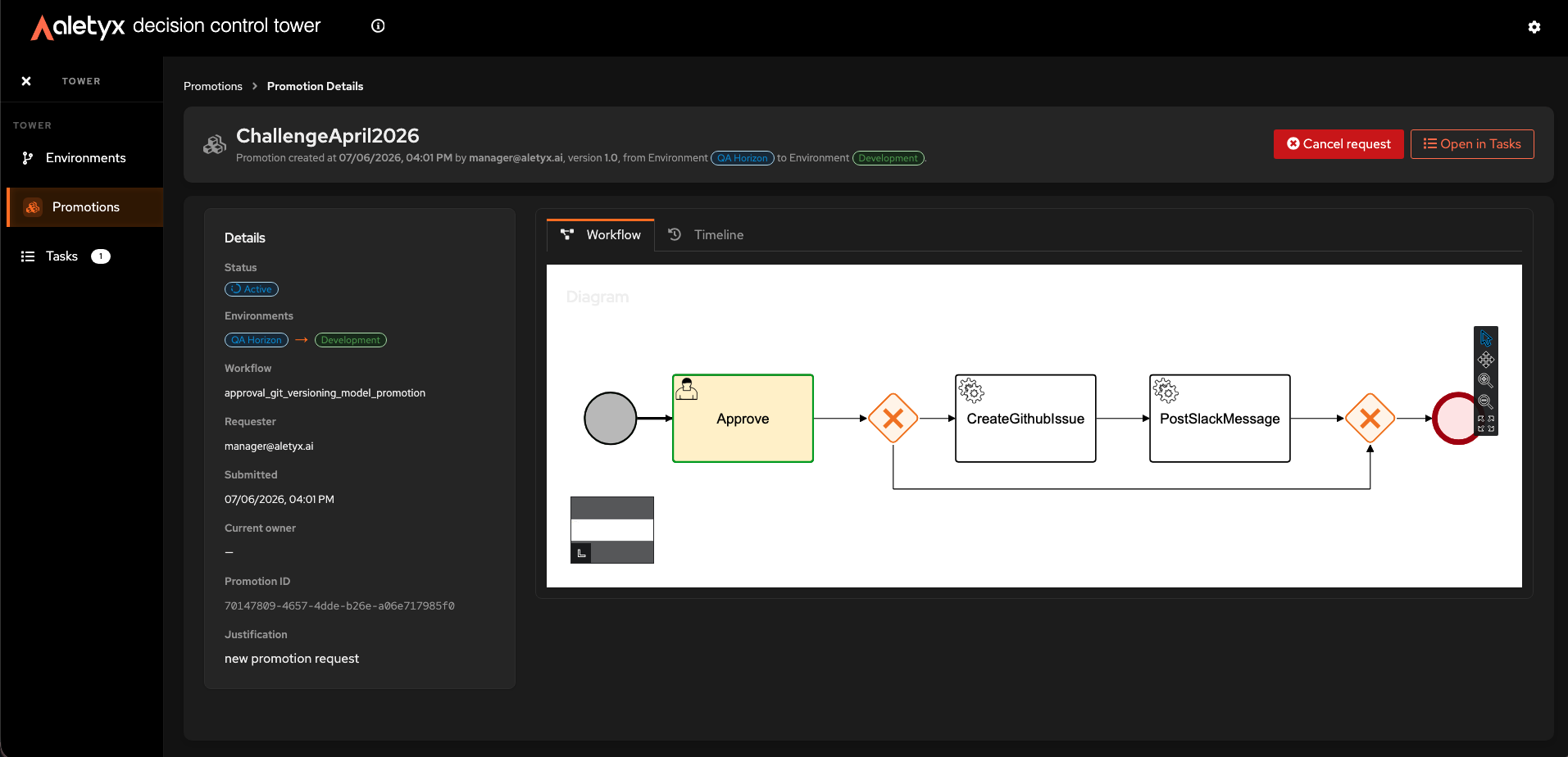
/promotions/{id}). - Read the Details card: Status, Environments (source → target), Workflow, Requester, Submitted, Current owner, Promotion ID, and Justification.
- Switch tabs:
- Workflow - the BPMN diagram of the promotion workflow.
- Timeline - the per-task lifecycle; use View full history to open the full promotion history.
- (Optional) Click Open in Tasks to jump to the matching governance task.
Verify: The detail page shows the Details card with a status pill and both tabs.
How to cancel a promotion request
Withdraw a request that hasn't finished yet.
Prerequisites: The request is in a cancellable state - Pending, Active, In Review, or Approved.
Steps:
- Open the request (from the list row or its detail page).
- Click Cancel request.
- In the confirmation modal, click Cancel request to confirm (or Keep request to abort).
Verify: The request status becomes Cancelled and the action is no longer offered.
Promotion statuses
Each request shows a colored status pill. The workflow uses the following states:
| Status | Meaning |
|---|---|
| Pending | Submitted, awaiting the workflow to activate |
| Active | Workflow is running |
| In Review | Waiting on a reviewer/approver |
| Approved | All required approvals granted |
| Deploying | Being deployed to the target environment |
| Deployed | Successfully deployed to the target |
| Failed | Deployment failed (see the promotion history for the reason) |
| Rejected | A reviewer denied the request |
| Cancelled | Withdrawn by the requester |
| Rolled Back | A previously deployed promotion was reverted |