Home & Global
The home page is the entry point to each Decision Control workspace. Which cards appear depends on your role and on which workspaces your administrator has enabled — cards you aren't authorized for are shown disabled.
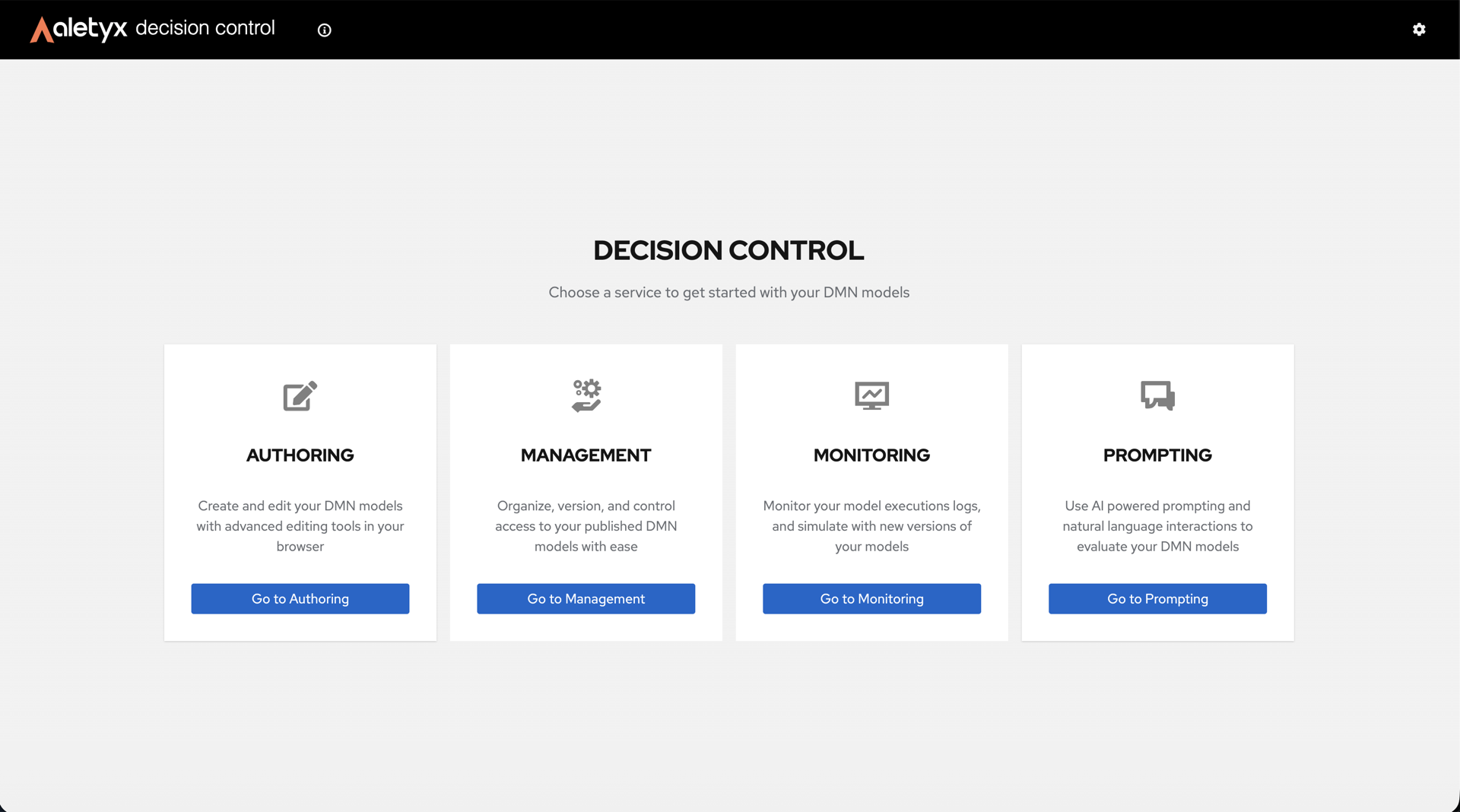
The home page shows one card per workspace: Authoring, Management, Monitoring, and Prompting. The masthead gear icon (top-right) opens the global Settings.
How to open a workspace
Each workspace is a card on the home page. To open one, find its card and click its Go to … button.
| Workspace | What it's for | Role |
|---|---|---|
| Authoring | Build and edit DMN decision models | Authoring access |
| Management | Manage units, versions, models, uploads, execution | Management access |
| Monitoring | Execution history, audit logs, analytics | Management access |
| Prompting | Natural-language chat assistant | Prompting access |
Disabled vs hidden
A card you aren't authorized for is shown disabled; a workspace turned off in your deployment is hidden entirely.
Verify: The chosen workspace opens — for example, Authoring shows the Create / Import / Recent models sections, and Management loads its left sidebar with the Dashboard.
How to open global Settings
Open the global Settings dialog from the gear icon in the masthead. It is available from any screen and groups its options into tabs:
- Git Providers — connect your GitHub, Bitbucket, or GitLab accounts so you can import from and sync with private repositories, gists, and snippets.
- Theme — switch the interface between light and dark themes.
- AI Assistant — store and validate the token the AI features use. (This tab appears only when the AI SaaS integration is enabled.)
Prerequisites: None.
Steps:
- Click the gear icon (Settings) in the top-right masthead.
- In the Settings dialog, pick a tab: Git Providers, Theme, or AI Assistant.
- Make your changes (for example, choose a theme or paste a token).
Verify: The selected tab shows your saved values; the dialog can be closed and reopened with changes retained.
How to connect a Git provider
Connect a GitHub, Bitbucket, or GitLab account so you can import models from private repositories, gists, or snippets, and sync your Git-backed workspaces.
Prerequisites: A Personal Access Token (PAT) from your Git provider. For GitHub, a classic token with the repo scope, or a fine-grained token with Contents: Read + Metadata: Read.
Steps:
- Open Settings (gear icon in the masthead) → Git Providers tab.
- Click the provider you want to connect (GitHub, Bitbucket, or GitLab).
- Paste your Personal Access Token and submit.
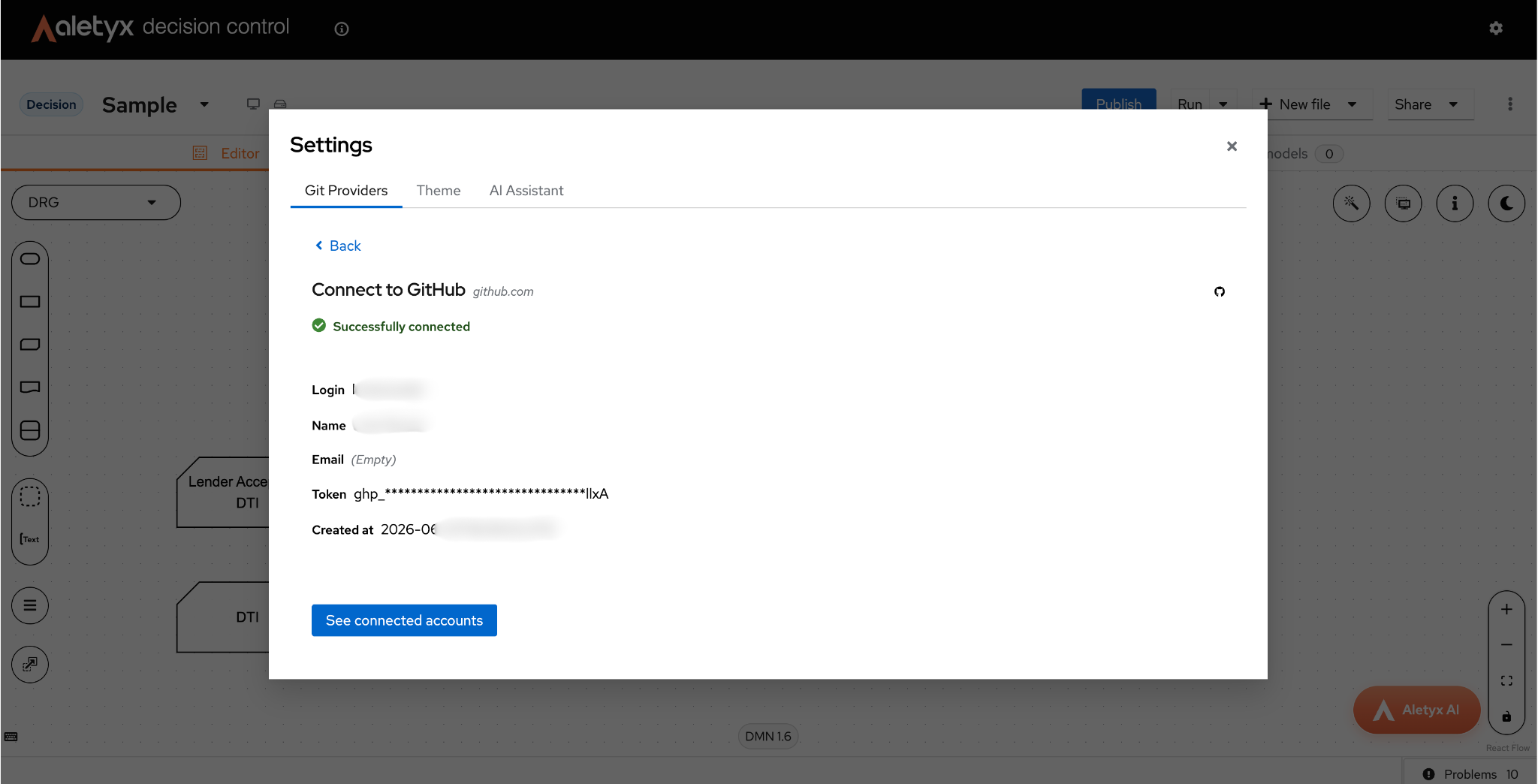
Verify: The dialog shows ✓ Successfully connected along with your login, name, the masked token, and the connection date. Click See connected accounts to manage existing connections.
Bad credentials (401)
If the provider returns Bad credentials after you submit:
- Check the token was pasted in full (no leading/trailing spaces, no missing characters)
- Make sure the token hasn't expired
- Confirm the token has the required scopes (
repofor GitHub classic, the equivalent permissions for fine-grained tokens, Bitbucket, or GitLab) - If in doubt, generate a fresh PAT and try again