Management – Execute Rules
Run published decision models with inputs and inspect their outputs. All guides require Management access.
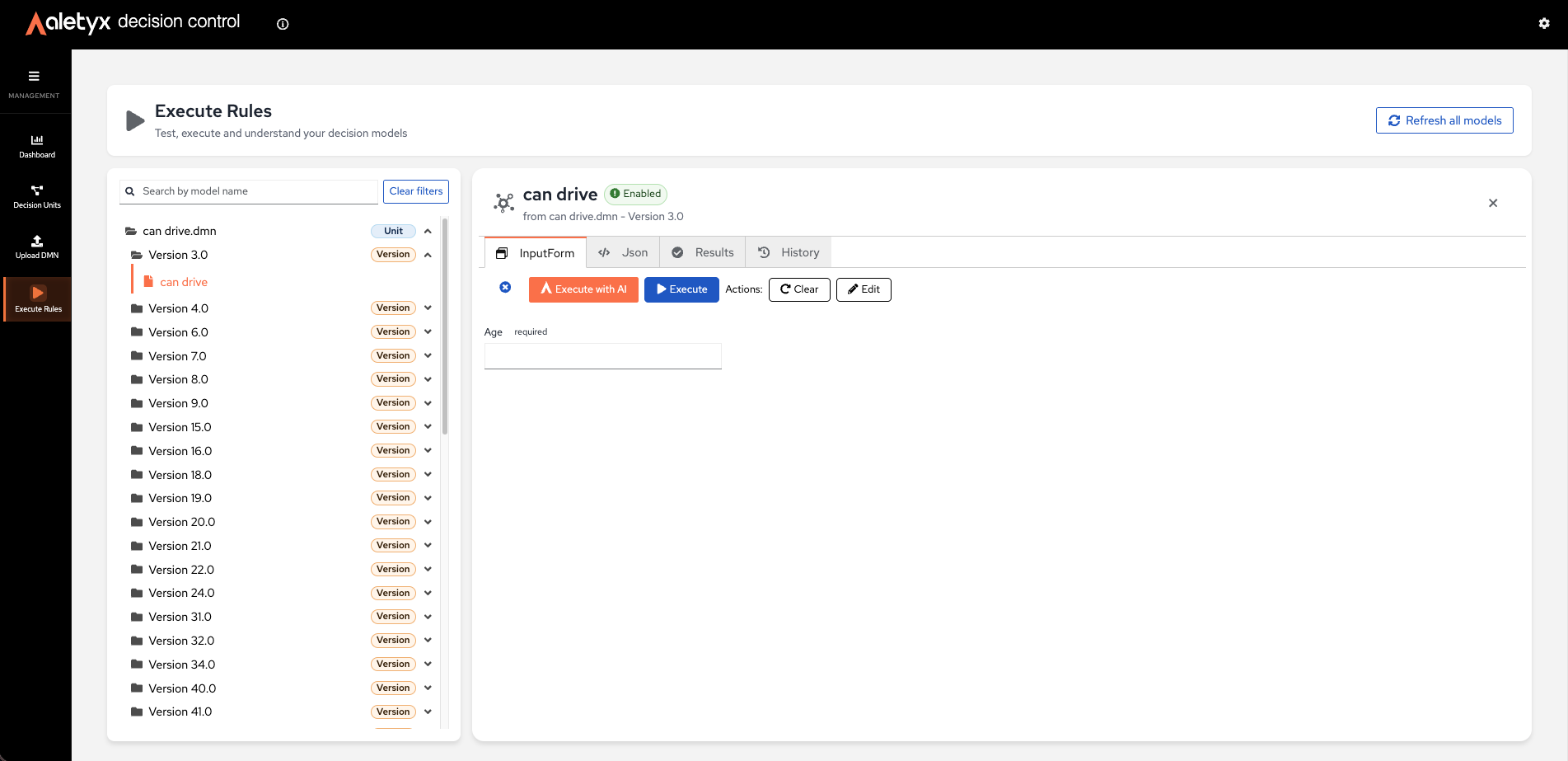
Search for a model, fill the InputForm (or Json) tab, click Execute, and read the Results tab.
How to find and open a model to execute
Locate a deployed model and load its input form.
Only ENABLED models can be executed
Disabled models appear in the list but can't be expanded. Enable the model (and its parent unit/version) on the Versions & Models page first.
Steps:
- Open Management → Execute Rules.
- Type in Search models by name or unit….
- Click the model to expand it (or Open Model). Use Refresh all models if it's missing.
Verify: The model expands and its input form/schema loads.
How to execute a decision model
Run a model with inputs and view its outputs.
Prerequisites: A model opened in Execute Rules.
Provide the inputs in whichever form you prefer:
- On the InputForm tab, fill in the generated fields.
- Click Execute.
- On the Json tab, paste or edit the input payload.
- Click Execute.
Then open the Results tab to view the output (toggle Summary/JSON, copy as needed).
Verify: The Results tab shows the evaluated output.
How to execute a model with AI explanation
Run a model and generate a business/technical narration of the result — useful for stakeholders who need the why, not just the value.
Prerequisites: AI flags enabled (the button is hidden otherwise).
Steps:
- Enter inputs as above.
- Click Execute with AI (also labeled Execute & Explain).
-
Open the narration panel for Business / Technical explanations.
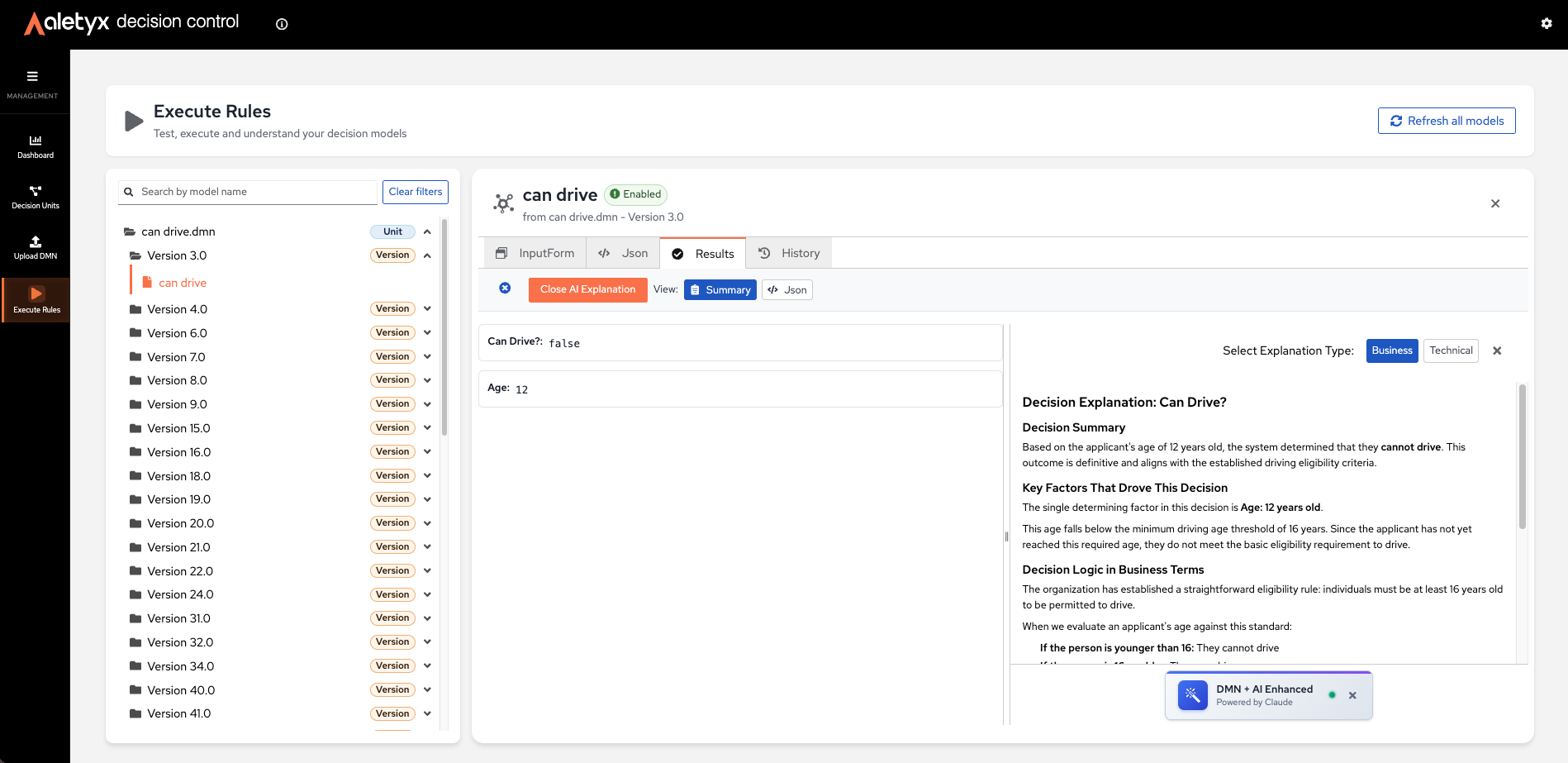
Verify: Results appear plus AI narration.
How to review execution history in Execute Rules
Revisit prior runs for the open model.
Prerequisites: Previous executions in this session.
Steps:
- Open the History tab.
- Filter by All / Success / Error / Explained (runs done with Execute with AI that produced an AI narration), and click View details to replay one.
- (Optional) Click Clear History to remove all entries.
Scope of the history
This history is session-local (kept in your browser) — it's perfect for replaying scenarios while you work, but it doesn't survive a reload or move with you across browsers. For persistent execution records, see Monitoring → Executions.
Verify: The chosen run's inputs/results load; clearing empties the list.